

Setting Up Automated Appointment Deposit Workflows
Objective: To automate the collection of appointment deposits using GoHighLevel to reduce no-shows and streamline the booking process.
Step 1: Create the Deposit Product
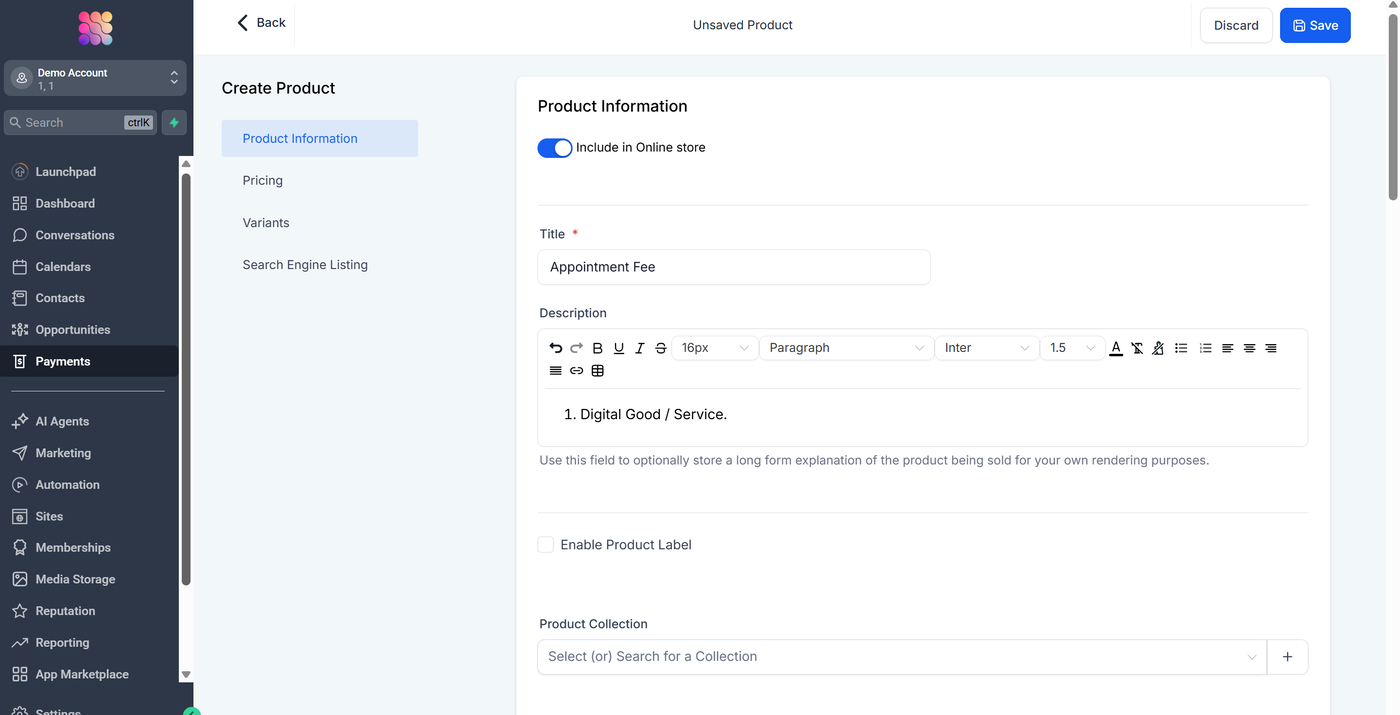
Before setting up the automation, you need a product to sell.
Navigate to Payments > Products.
Click + Create Product.
Name: e.g., "Appointment Deposit."
Product Type: Digital Good / Service.
Price: Set your desired amount (e.g., $50).
Save the product.
Step 2: Generate the Payment Link
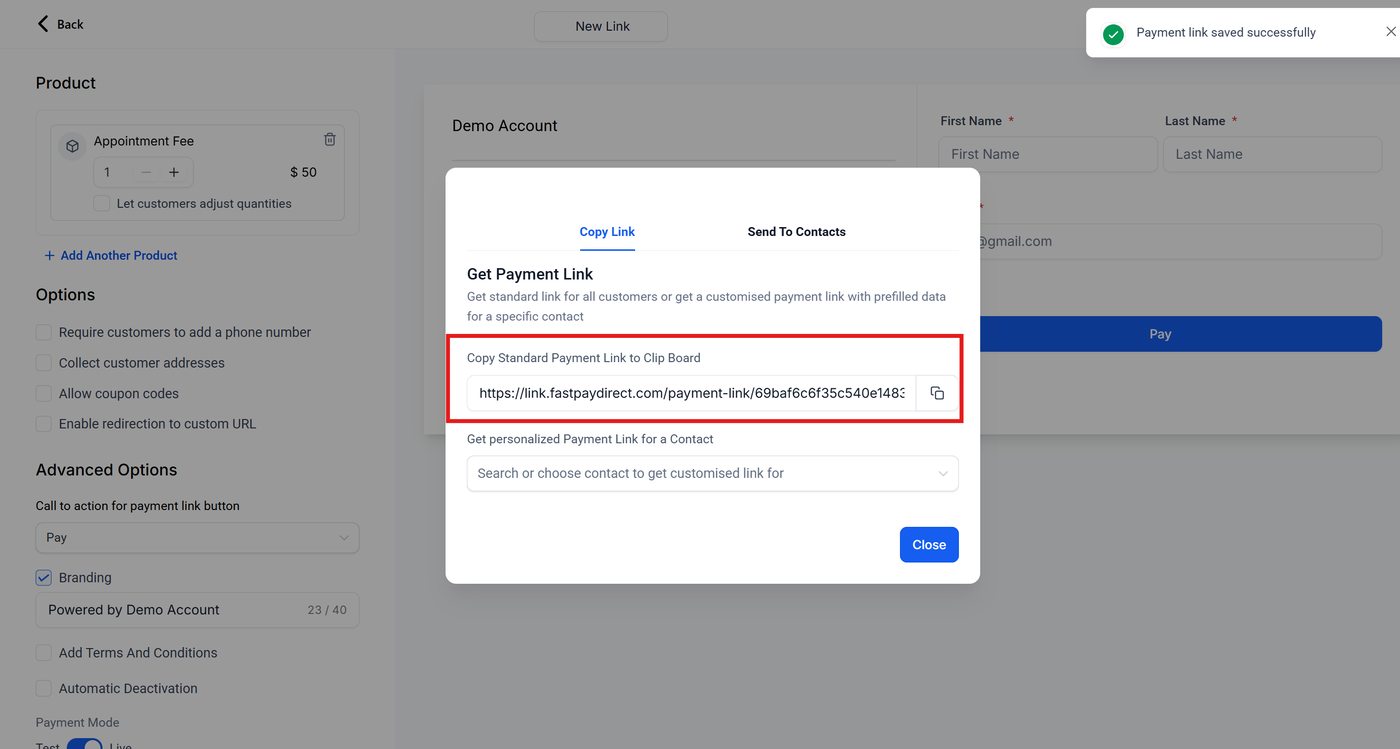
Still under Payments, go to the Payment Links tab.
Click Create Payment Link.
Select the "Appointment Deposit" product you just created.
Copy the generated URL. You will need this for your SMS automation.
Step 3: Create the Booking Trigger Workflow
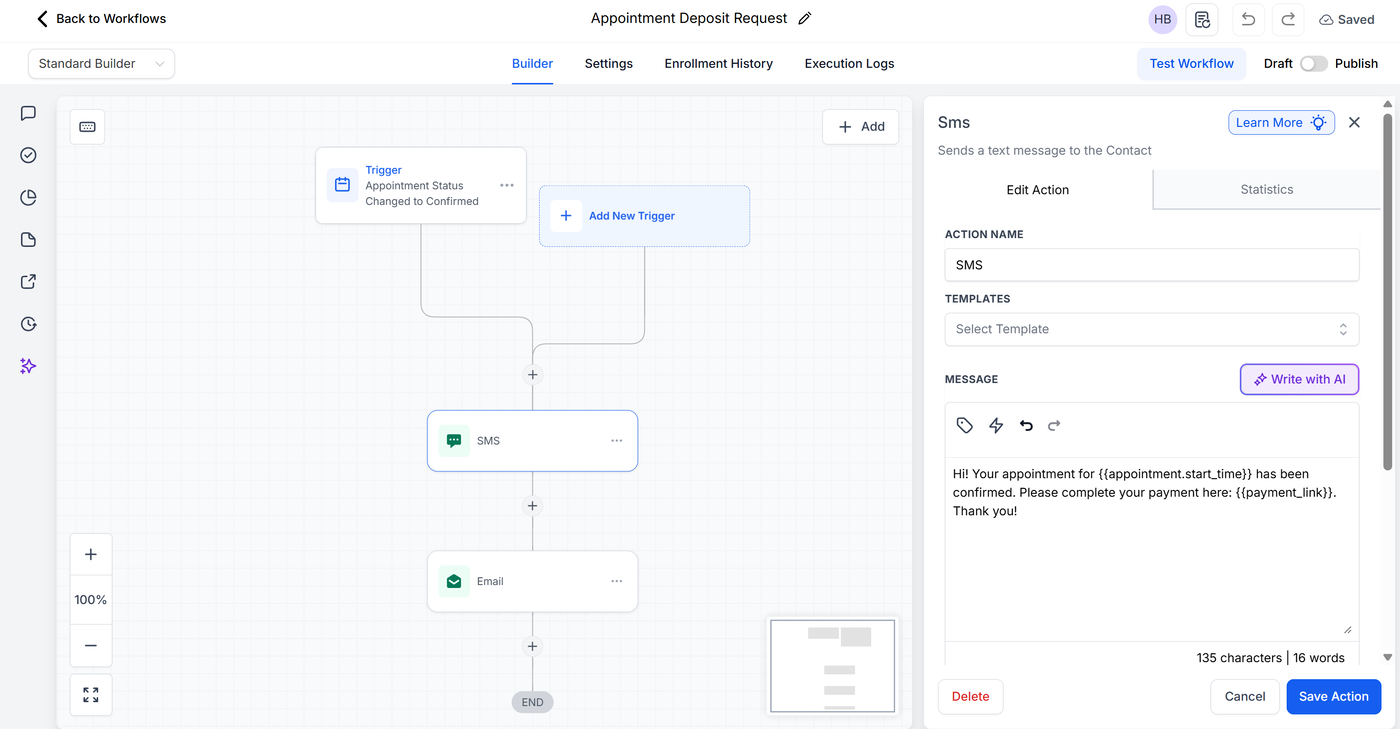
This workflow ensures that as soon as a patient/client books, they are prompted to pay.
Go to Automation > Workflows > Create New Workflow.
Trigger: Select Appointment Status.
Filter:
Event Type is Normal(or your specific calendar).Filter:
Appointment Status is Confirmed.
Action: Add an SMS step.
Message: "Hi {{contact.first_name}}, your appointment is reserved! To secure your spot, please pay the deposit here: [Paste Payment Link]."
Action (Optional): Add a Wait step (e.g., 24 hours) followed by an If/Else condition to check if the payment was made, sending a reminder if not.
Step 4: Create the Payment Confirmation Workflow
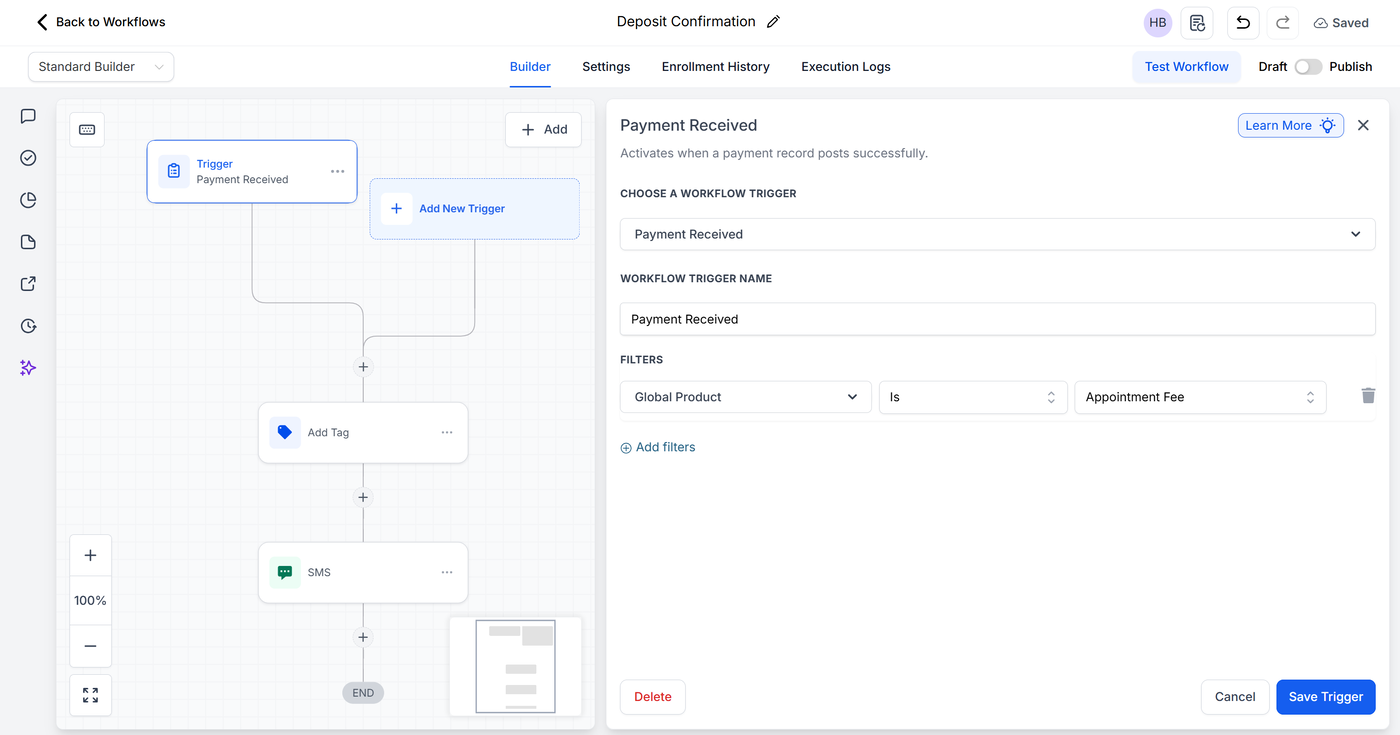
This closes the loop and confirms the appointment is fully secured.
Create a second New Workflow.
Trigger: Select Order Submitted (or Payment Received).
Filter:
Global Product is Appointment Deposit.
Action: Add an SMS or Email step.
Message: "Thank you! We’ve received your deposit. Your appointment is now fully secured. See you soon!"
Action: (Internal) Update the Contact Tag to "Deposit Paid" for easy filtering in your CRM.
Best Practices for This Workflow
Internal Notifications: Add an "Internal Notification" step in the second workflow so your team knows a deposit has successfully landed.
Refund Policy: Ensure your payment link page or the initial SMS includes a brief mention of your cancellation/refund policy to avoid disputes.